Next.js
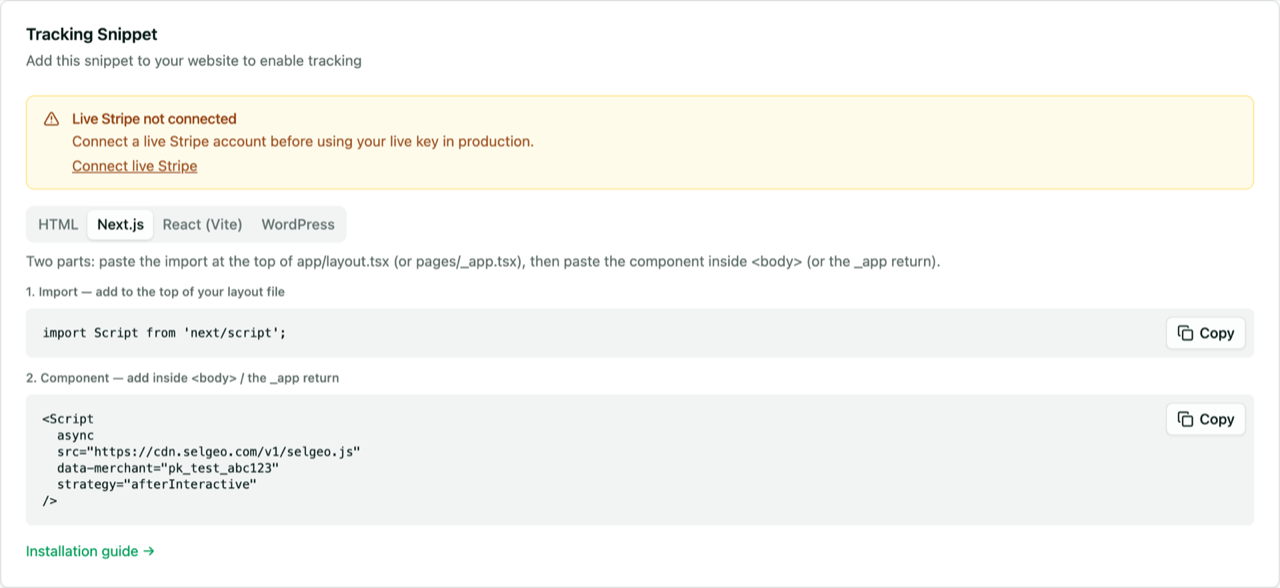
Install the Selgeo tracking snippet in a Next.js application using the framework's first-party next/script component. This guide covers both the App Router (app/layout.tsx) and the Pages Router (pages/_app.tsx).
API Version: v1
If you are not on Next.js, see the HTML / plain-script guide, the React (Vite) guide, or the WordPress guide instead.
Why next/script?
A bare <script> tag in a React component does not behave the way it does in plain HTML — Next.js bundles JavaScript per-route and hydrates pages incrementally. The official next/script component:
- Loads the snippet exactly once across client-side navigations (no duplicate execution).
- Honours a load
strategyyou control (we useafterInteractive). - Plays nicely with Next.js's streaming SSR and Partial Prerendering.
We use strategy="afterInteractive" rather than lazyOnload so the snippet is ready before the first ?ref= parameter is processed. Attribution accuracy beats a marginal Lighthouse score gain — lazyOnload risks missing an early click that converts immediately.
Installation — App Router (app/layout.tsx)
For projects on Next.js 13+ using the app/ directory.
Step 1: Add the snippet to the root layout
Open app/layout.tsx and add the Script import and JSX element:
import Script from 'next/script';

export default function RootLayout({
  children,
}: {
  children: React.ReactNode;
}) {
  return (
    <html lang="en">
      <body>
        {children}
        <Script
          async
          src="https://cdn.selgeo.com/v1/selgeo.js"
          data-merchant="pk_test_YOUR_KEY"
          strategy="afterInteractive"
        />
      </body>
    </html>
  );
}
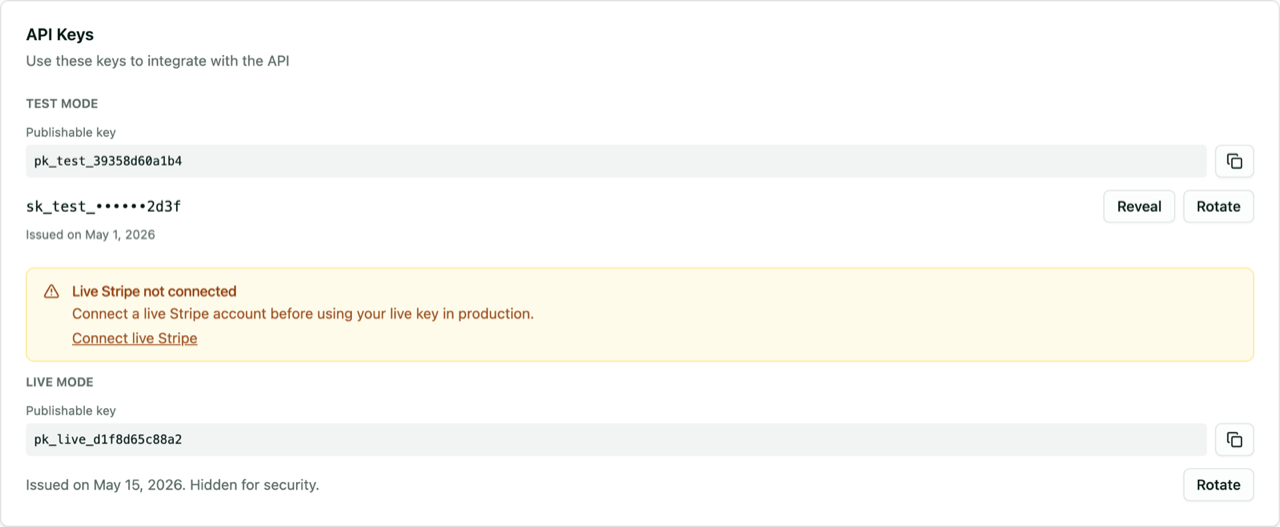
Replace pk_test_YOUR_KEY with your public API key from Settings > API Keys in the Selgeo dashboard.
Step 2: Save and run
pnpm dev
# or
npm run dev
Open your site in the browser. The snippet now loads on every page rendered by the App Router.
Installation — Pages Router (pages/_app.tsx)
For projects on the legacy pages/ directory.
Step 1: Add the snippet to the custom App component
Open (or create) pages/_app.tsx:
import type { AppProps } from 'next/app';
import Script from 'next/script';

export default function App({ Component, pageProps }: AppProps) {
  return (
    <>
      <Component {...pageProps} />
      <Script
        async
        src="https://cdn.selgeo.com/v1/selgeo.js"
        data-merchant="pk_test_YOUR_KEY"
        strategy="afterInteractive"
      />
    </>
  );
}
Step 2: Restart the dev server
pnpm dev
Pages-Router projects must restart the dev server when _app.tsx is created for the first time. Subsequent edits hot-reload normally.
Required and optional attributes
| Attribute | Required | Description |
|---|---|---|
src | Yes | CDN URL. Always https://cdn.selgeo.com/v1/selgeo.js. |
data-merchant | Yes | Your public API key (pk_test_* or pk_live_*). |
async | Yes | Asynchronous loading; does not block hydration. |
strategy | Yes | Use "afterInteractive". Do not switch to "lazyOnload" — early referral clicks may be missed. |
data-debug | No | Enables verbose console logging. Remove before going live. |
data-api-url | No | Overrides the API endpoint. Only present for staging / development workspaces — the Selgeo dashboard injects it automatically when needed. |
Verifying your installation
- Build and run your project (
pnpm devorpnpm build && pnpm start). - Create a tracking link in the Selgeo dashboard under Programmes > Tracking Links.
- Visit your site with the tracking link, for example:
https://your-site.com/?ref=YOUR_TEST_REF
- Open Developer Tools (F12) and check the Console. With
data-debugadded temporarily, you should see:[selgeo] ref detected YOUR_TEST_REF[selgeo] click_id stored xxxxxxxx-xxxx-xxxx-xxxx-xxxxxxxxxxxx - In the browser console, run:
This should return a UUID string.__selgeo.getClickId()
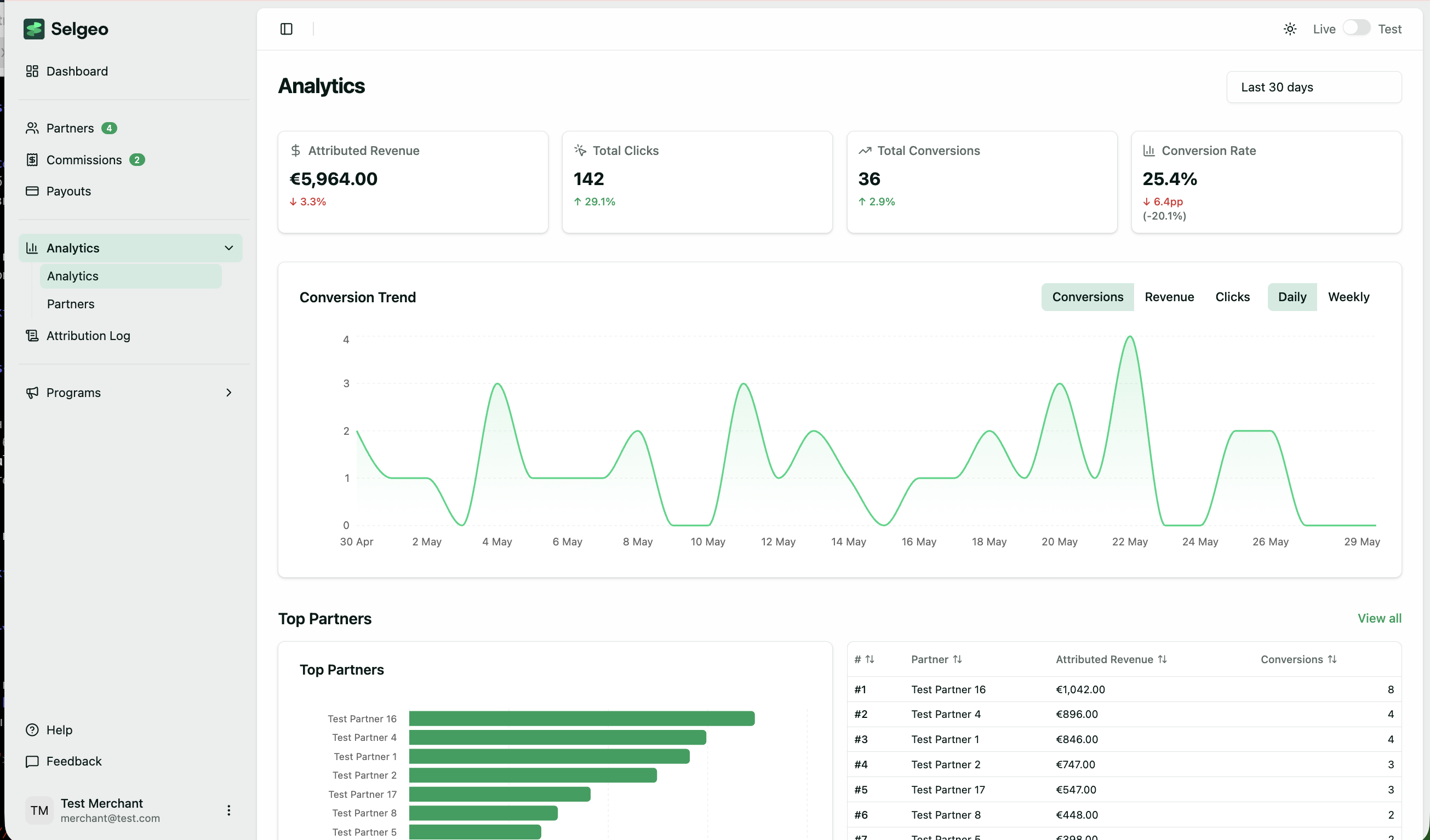
nullmeans the snippet did not detect a?ref=parameter. - Open the Selgeo dashboard. The click should appear under Analytics within a few seconds.
Troubleshooting
Snippet not loaded
- Confirm
app/layout.tsx(App Router) orpages/_app.tsx(Pages Router) actually contains the<Script>block — accidental duplication into a single page file is the most common mistake. - Verify the
srcis exactlyhttps://cdn.selgeo.com/v1/selgeo.js. A typo silently fails the script load. - Open the Network tab and filter by
selgeo.js. A red entry with status 0 or a CORS error usually indicates a CSP violation — see below. - If you are running behind a static export (
output: 'export'), confirm the snippet is included in the exported HTML.next/scriptwithstrategy="afterInteractive"is preserved by static export.
Click not tracked
- The visitor must arrive with
?ref=…on the initial page load. Once the snippet captures the click, the URL is rewritten and the parameter no longer appears. Reload the page with a fresh tracking link if you have already consumed the current one. - Confirm
data-merchantcontains a validpk_test_*orpk_live_*key. A truncated or whitespace-prefixed value will silently no-op. - If you use React Strict Mode, ensure the snippet is in
app/layout.tsxorpages/_app.tsx, not inside an effect that may run twice.next/scriptalready deduplicates correctly. - Check the Selgeo dashboard mode (test vs live). A
pk_live_*key on a tracking link issued in test mode will not register the click.
CSP blocking
If your Next.js project sets a Content-Security-Policy header (next.config.js headers(), middleware, or a Vercel vercel.json entry), allow the Selgeo origins:
script-src 'self' https://cdn.selgeo.com;
connect-src 'self' https://api.selgeo.com;
For staging / dev workspaces where data-api-url points elsewhere, add that origin to connect-src as well. If you cannot relax CSP, consider routing the snippet through your own origin (advanced, out of scope for this guide).
Next steps
- Stripe Payment Links — zero-backend Stripe integration.
- Stripe Checkout — pass
click_idto Checkout Sessions from your server. - Conversion API — track non-Stripe conversions.
- Snippet Setup — full attribute reference and the underlying HTML script tag.